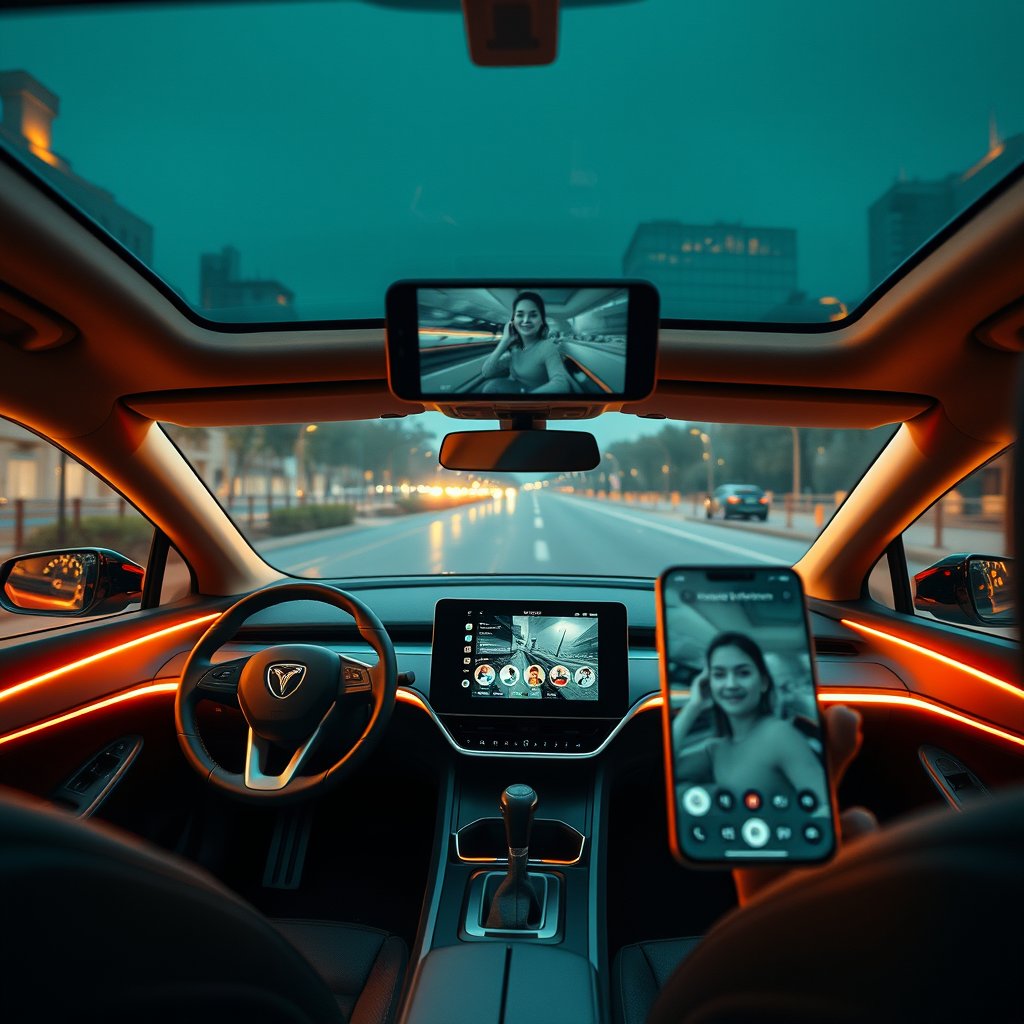
Your parked Tesla can now sit in on a Google Meet. With the 2026.26 Summer Update, Tesla quietly turned the car's interior cabin camera into a working webcam, letting you join browser-based video calls on Microsoft Teams, Google Meet, Discord, and X Spaces straight from the center screen. No dedicated app, no phone propped against the wireless charger, no awkward laptop balanced on your knees. The update started rolling out over the weekend after Tesla teased it the week prior, and it is landing on cars now.
This is one of those features that sounds like a novelty until the first time you are running late for a standup and realize you can just take the call from the driveway. It also creates a brand-new accessory category overnight. Once your car is a video-call device, the same problems every remote worker knows suddenly apply to your Model 3 or Model Y: lighting, framing, audio, and where to put your hands. Here is exactly how the feature works, who can use it, and the gear that makes a car video call look like you meant to do it.
What Tesla Actually Added in 2026.26
Tesla did not build standalone Teams or Meet apps. Instead, it granted the car's built-in web browser permission to access the cabin microphone and the interior camera. That is a smart move: any browser-supported conferencing platform works, so you are not waiting on Tesla to ship an app for your particular tool. Google Meet, Microsoft Teams, Discord, and X Spaces all work today because they run in a browser tab.
When you open a site that requests camera access, the car throws up an on-screen dialog asking you to grant cabin microphone and interior camera permissions. You can deny it, allow it just for that session, or grant permanent access, exactly like a permission prompt on a phone or laptop. Once granted, the interior camera feed pipes into the call.
For details straight from the people who found it first, notateslaapp's write-up on the 2026.26 rollout covers the permission flow and platform support in depth.
The Hardware Catch: You Need an AMD Ryzen Car
Here is the part that decides whether you can use this at all. The feature is exclusive to Teslas powered by the AMD Ryzen infotainment processor. Older Intel Atom-based cars cannot use the cabin camera as a webcam, full stop.
Most Model 3 and Model Y vehicles built from roughly late 2021 onward carry the Ryzen chip, and all Model S and Model X refresh cars do. If you are not sure which processor your car has, it is worth confirming before you buy anything on this list, because half of the payoff depends on the camera working. The other half, better audio and a place to work, still helps any Tesla owner who takes calls from the car using a phone or laptop.
How the Cabin Camera Frames You (and Why It Matters)
The cabin camera does not just hand your raw feed to the call. It automatically zooms in and crops to center the driver in the frame. That auto-framing is convenient, but it is aggressive. Early reports note the crop can clip parts of the driver out of frame, and right now the feature works for the driver's seat only, not passengers. Tesla has hinted that smarter face-tracking could come later, but treat the current framing as fixed and a little unforgiving.
What that means practically: you have limited control over your on-camera framing, so you win the shot in the other two areas the car cannot fix for you, which are lighting and background. Get those right and the aggressive crop stops mattering.
Gear to Make In-Car Video Calls Actually Work
The car handles the camera. Everything else is on you. Here is the kit, roughly in order of impact.
1. A Real Phone Mount (For When the Cabin Camera Isn't Enough)
The cabin camera is fixed and driver-only. If a passenger needs to be on the call, or you want a flattering angle the built-in camera can't give you, you fall back to your phone as the webcam. That means you need a mount that actually holds the phone at eye level and doesn't sag mid-meeting. The stock wireless charger pad puts your phone too low and too flat for a good call angle.
A vent- or screen-edge mount with a strong clamp lets you position the phone where the camera flatters you instead of shooting up your nose. Look for one rated for larger phones so a case doesn't pop it loose.
→ Shop Tesla phone mount on Amazon
As an Amazon Associate we earn from qualifying purchases. If you already run a mount for navigation, you are halfway there; you just need it high enough for a call.
2. Ambient Cabin Lighting (The Single Biggest Upgrade)
Nothing ruins a car video call faster than bad light. Park facing away from a bright window and the camera turns your face into a silhouette. The cabin's own dome lights are dim and cast harsh downward shadows. The fix is soft, front-facing fill light.
USB-powered ambient LED light strips or a small clip-on fill panel that runs off the car's USB-C ports give you even, warm light on your face without blinding glare. Strips tucked along the dash or footwell double as everyday cabin mood lighting, so they earn their keep even when you are not on a call. If you want to go further into interior lighting and USB power, our guide to the Tesla USB hub and port expansion covers how to run several accessories at once without starving your dashcam.
→ Shop car cabin ambient LED lights on Amazon
3. A Webcam Privacy Cover for the Cabin Camera
Handing browser permission to your car's interior camera is convenient, and it also means the camera can see you whenever a site has access. Plenty of owners are comfortable with that; plenty are not. A simple sliding privacy cover lets you physically block the cabin camera lens when you are not on a call, so there is no question about whether anything can see inside.
These covers are cheap, they peel on without residue, and they give you a hard off switch that no software toggle can match. If you are the type who tapes over your laptop webcam, you already know why this belongs on the list.
→ Shop webcam privacy cover on Amazon
4. A USB-C Microphone for Clearer Audio
The cabin microphone is tuned to pick up voice commands from anywhere in the car, which means it also picks up road-side noise, HVAC hum, and echo off the glass. On a quiet parked call it is fine. On a windy day with the fan running, the other side hears the car more than they hear you.
A small USB-C microphone plugged into the console port sits closer to your mouth and rejects a lot of that ambient noise. A clip-on lavalier or a compact desktop mic both work; the browser lets you pick the input device the same way it does on a laptop. This is the upgrade people notice on the other end of the call even though you never see it yourself.
→ Shop USB-C microphone on Amazon
5. A Steering Wheel or Laptop Tray
If the call needs you to share a screen, take notes, or reference a doc, you need somewhere to put a laptop. A steering-wheel desk or a console-mounted tray turns the front seat into a passable mobile workspace. Wheel desks clip over the rim and give you a flat surface at chest height; console trays keep the wheel clear if you prefer working off the center armrest. Neither is something you drive with, obviously, but for a parked working session they beat balancing a laptop on your thighs.
Powering It All Without Killing Your Dashcam
Add a light, a mic, and a charger and you will run out of ports fast. Teslas have a limited number of USB-C outlets, and one of them is usually feeding a Sentry Mode drive you do not want to unplug. Before you load up on USB accessories, think about power budget. A quality hub keeps everything fed, and keeping your phone topped off during a long call matters too, since video conferencing drains a battery quickly. Our rundown of Tesla phone charging solutions walks through the charging side so a dead phone doesn't drop you mid-meeting.
Should You Actually Take Calls From Your Car?
Be honest about the use case. This is a parked feature. You are not meant to run a video call while driving, and you should not. Where it shines is the in-between moments: the driveway before you head out, the parking lot between errands, the pickup line where you have fifteen minutes to kill. For those, a Tesla that can drop into a Meet without you digging out a laptop is genuinely useful.
It also fits the growing reality that the car is becoming a second office. Owners already use their Teslas as a quiet place to take calls, eat lunch, and get away from a noisy house. The 2026.26 update just makes that official, and the accessories above are the difference between looking like you are hiding in your car and looking like you are simply working from somewhere nice. If you are building out the cabin for exactly that kind of use, our guide to the best Tesla Model Y accessories for 2026 rounds up the rest of the interior kit worth owning.
The Short Version
Tesla's 2026.26 Summer Update lets AMD Ryzen cars join browser video calls on Google Meet, Teams, Discord, and X Spaces using the cabin camera and microphone, with an on-screen permission prompt each time a site asks. The auto-framing centers the driver but crops tightly and works for the driver only for now. The camera part is handled; your job is lighting, audio, background, and a place to work. A front-facing fill light and a decent mic do the most, a privacy cover buys peace of mind, and a mount plus a wheel tray cover the cases where the built-in camera falls short. Confirm your car has the Ryzen chip first, then set the cabin up once and you will be ready the next time a meeting invite lands while you are sitting in the driveway.
As an Amazon Associate we earn from qualifying purchases. This article contains affiliate links; if you buy through them we may earn a small commission at no additional cost to you.